Password Protect or Unlock a PDF Free
Lock the finished client file with real 256-bit AES encryption before it leaves your hands. The file and the password never leave your device.
Protect or Unlock Now →For CAs • November 2026 • 10 min read
Last updated: November 2026
Client files carry PAN, Aadhaar, bank, and income details, and they travel by email and chat. Here is why a password belongs on them every time, and a three step workflow that never uploads a file.
It is the last week of the filing season. You have a folder per client, each with a PAN card, an Aadhaar copy, bank statements, a Form 16, the AIS, and a freshly generated ITR-V. You merge a few of them, attach the PDF to an email, and press send.
That PDF has just left your control. It is now sitting in an inbox that may be shared with a spouse or an office assistant, synced to a phone that may be lost, and one tap away from being forwarded. Nobody did anything reckless. It is simply how documents travel.
This guide explains why a Chartered Accountant should put a password on important client PDFs before sharing them, even when the recipient is the client. It also walks through a three step workflow (redact, compress, protect) that runs entirely inside your browser.
At a Glance
A client file is a bundle of identity and financial data, and an email attachment travels through systems nobody at your firm controls. A password turns a leaked, forwarded, or misaddressed PDF from an incident into a locked file. Banks and UIDAI already deliver statements and e-Aadhaar this way. The practical routine for a CA is to redact what the recipient does not need, compress for the portal or inbox, then password protect last, using tools that never upload the file.
A client file feels like paperwork. To someone else it is a toolkit. Put the common documents next to what each one can be misused for and the stakes become obvious.
| Document | What it carries | Why it matters if it leaks |
|---|---|---|
| PAN and Aadhaar copies | Identity numbers, date of birth, address, photograph | Raw material for impersonation and KYC fraud |
| Bank statements | Account number, IFSC, every transaction, merchant names | A complete picture of income, spending and relationships |
| Form 16, AIS, ITR-V | Full income disclosure, employer, deductions, PAN | Enough detail to answer security questions or craft convincing phishing |
| GST and TDS records | GSTINs, invoices, customer and vendor details | Commercial relationships and pricing exposed to competitors |
| Balance sheets and audit files | Financials, loans, payroll, director and shareholder details | Even a company file is full of individuals’ personal data |
This is the data your clients trusted you with because of your professional confidentiality. Treating the delivery step as an afterthought is the weak link in an otherwise careful practice.
The usual objection is fair: “It is their own data. Why lock it from them?” The answer is that you are not locking it from the client. You are locking it from everyone else the file can reach on the way.
Many clients share an email account with a spouse, a parent, or an office clerk. Mail syncs to phones, tablets, and laptops, and attachments are often auto-downloaded. A protected file stays locked on every one of those devices.
A single wrong character in an address sends the file to a stranger. With an unprotected PDF, that is an immediate exposure of personal data. With a protected one, it is a locked file the stranger cannot open.
The PDF stays in your Sent folder, the client’s inbox, and their provider’s backups for years. If any of those accounts is compromised later, every old attachment is exposed unless it was locked.
Clients forward your email to a bank, a landlord, a relative, or a chat group. A password forces the next person in the chain to be someone the client deliberately gave it to.
None of these needs an attacker. They are ordinary, everyday ways a file escapes. That is exactly why a password is worth the ten seconds it takes.
Notice how the most sensitive documents in your own life arrive. Your bank emails a statement as a password protected PDF. A credit card issuer does the same. The e-Aadhaar you download from UIDAI is a password protected PDF, and its password is the first four letters of your name in capitals followed by your year of birth. The Income Tax Department issues ITR-V acknowledgements the same way, which is why we wrote a separate guide on opening password protected tax PDFs without uploading them.
These institutions are sending a document to the very person it belongs to, and they still lock it. The reason is not distrust of you. It is that email and downloads are channels nobody fully controls. If the largest handlers of Indian financial data treat a locked PDF as the baseline, a professional firm can reasonably do the same.
An honest caveat
Those formula passwords (name plus birth year, or a date of birth) are built to be convenient, not strong. Anyone who knows a few facts about the person can guess them. For client files, use a long, unique passphrase and share it separately, as described in the password habits section below.
There is a trap in the middle of this advice. If you protect a client PDF by uploading it to a free online tool, you have handed the unprotected file to a third party, and you cannot see what happens to it afterwards. The lock only helps if the file was never exposed while you were applying it. Our article on the hidden privacy risks of free online PDF tools explains what usually happens during that upload window.
A browser-based tool avoids the problem because the file and the password stay on your device from start to finish. That is how the Redact, Compress, and Protect tools below work.
Volume peaks, deadlines press, and shortcuts creep in. These are the stretches where a locked-by-default habit pays for itself.
PAN, Aadhaar, Form 16, AIS, bank statements, and ITR-V acknowledgements flow between you and hundreds of individuals in a few weeks.
Ledgers, payroll, loan statements, and trial balances move between the client’s accounts team, you, and sometimes lenders.
Invoice registers and GSTIN-level reconciliations contain both customer and vendor details that should not circulate openly.
Confirmations, stock lists, director details, and closing schedules go out in bulk, often to several people at once.
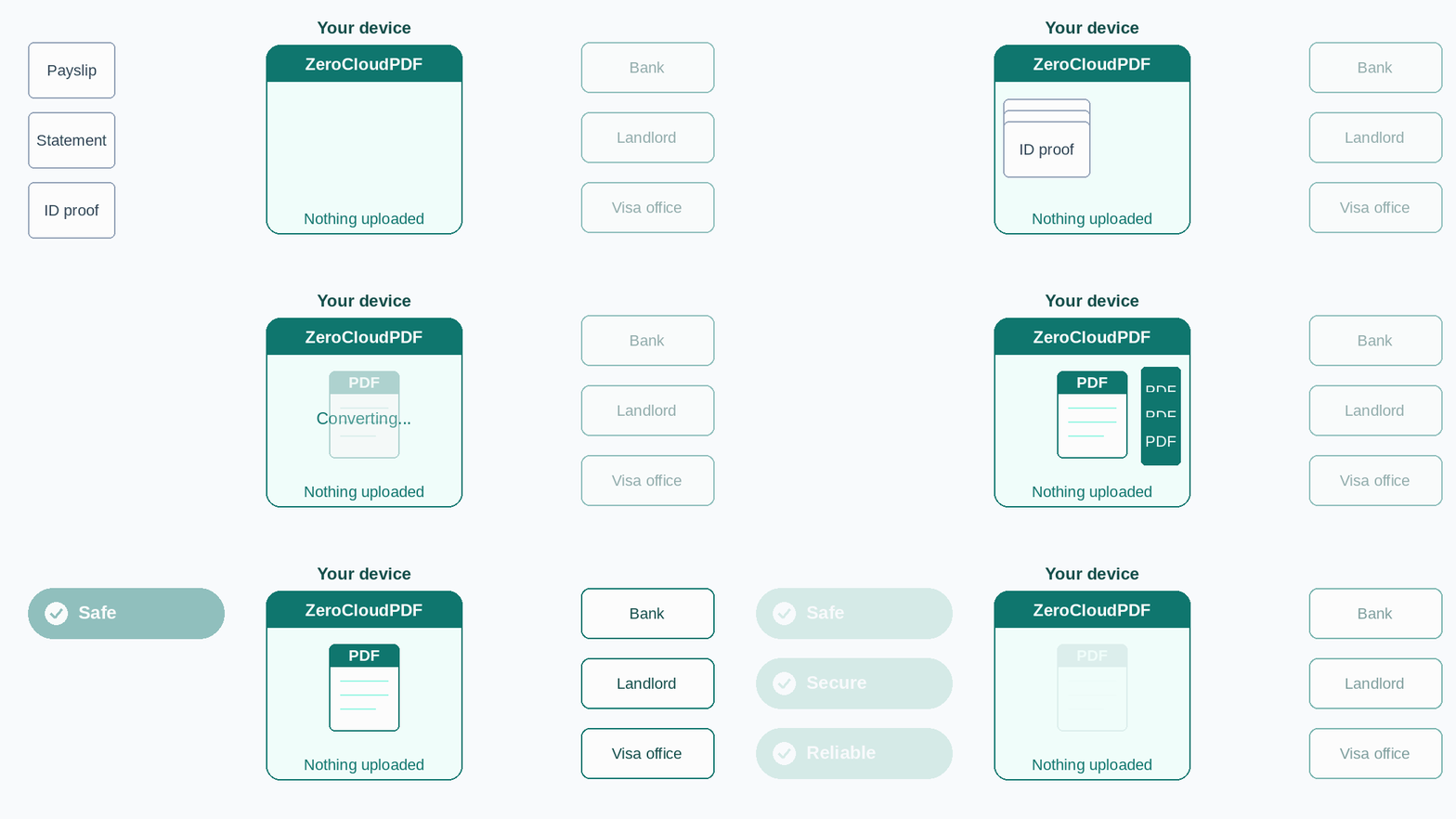
Doing this properly does not need new software or an upload. It takes three short steps, in this order, inside your browser. Nothing is sent to a server while you work, which the animation below shows: documents go in, a finished PDF comes out, and nothing is uploaded in between.
A password protects the whole file from outsiders. Redaction protects specific details from the person you are legitimately sending it to. If a lender needs proof of income, they do not need the full Aadhaar number on the same page. If a vendor needs one invoice, they do not need the rest of the ledger.
For Aadhaar, UIDAI’s masking rule is to cover the first eight digits of the twelve digit number and leave only the last four visible, and the QR code should be covered too since it encodes the same data. Our guide to redacting without leaving a trace explains why a black box drawn in a PDF viewer is not enough: the text underneath is often still there. The Redact tool flattens each page into an image, so the covered content is genuinely gone, at the cost of the file no longer being text searchable.
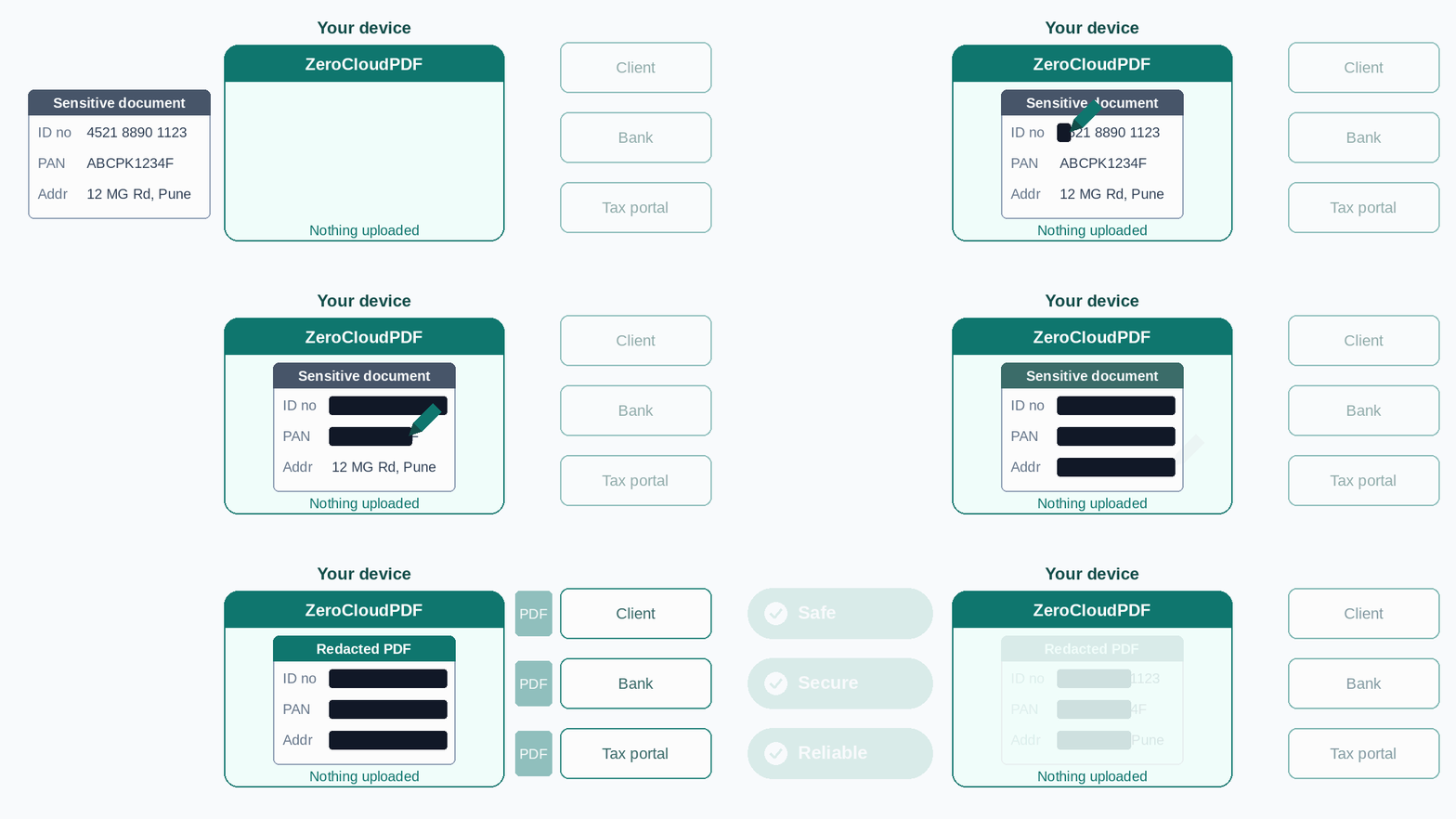
Redact what the recipient does not need. Runs entirely in your browser, no upload and no account.
Redact a PDF →Bank portals, the income tax portal, and email servers all have size limits, and a scanned bundle of statements can run into tens of megabytes. The tempting fix is to upload the bundle to whichever free compressor comes up first. That puts the whole client file on a stranger’s server to save a few megabytes.
The Compress tool runs locally and offers three presets: Smallest, Balanced, and Best Quality. It redraws each page as an image at the chosen quality, so text in the compressed copy is no longer selectable or searchable, and links and form fields are not kept. That is fine for a copy you are sending out, so always keep your original as the master. Balanced is usually the right starting point for documents that must stay readable.
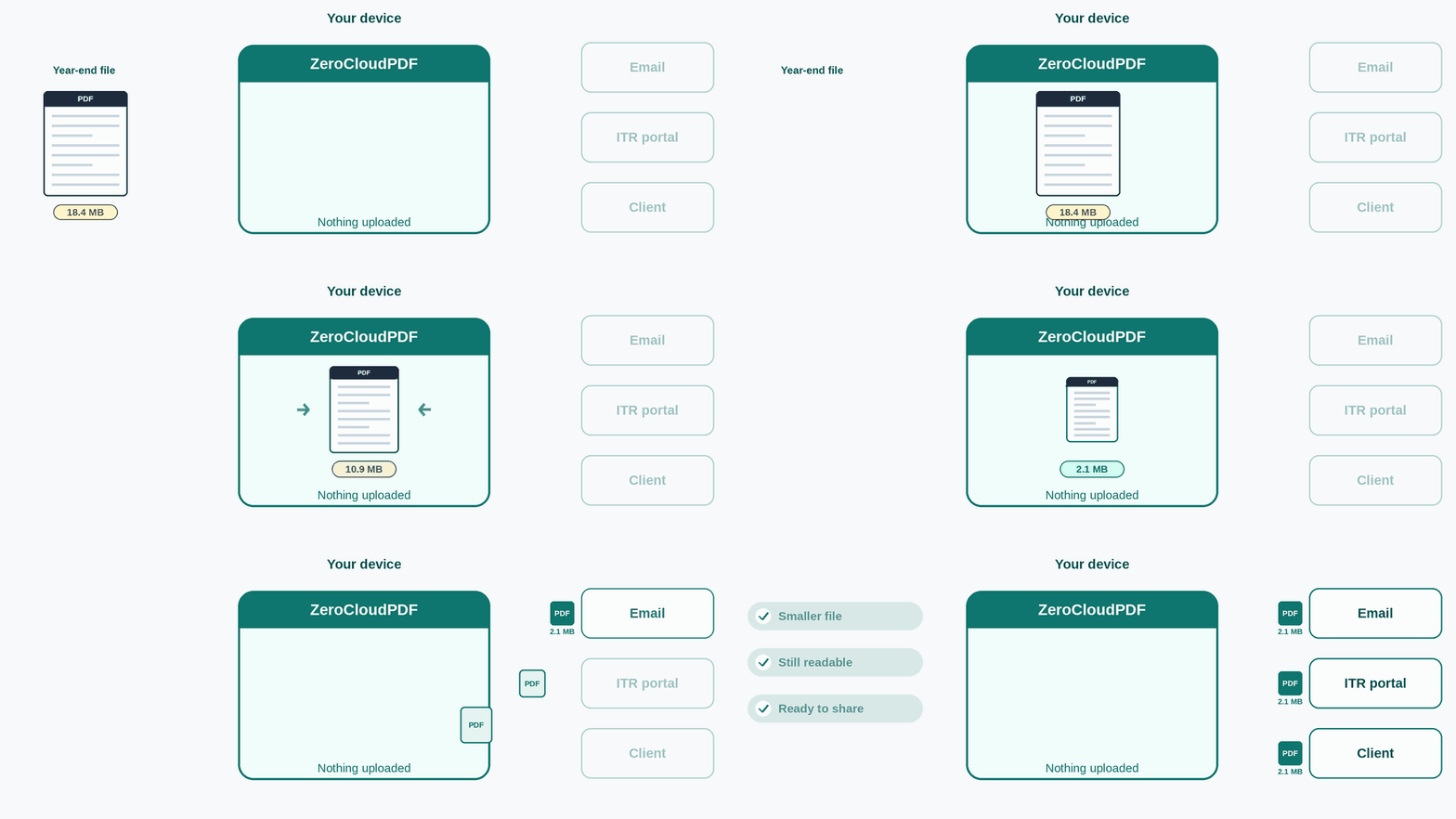
Bring a heavy bundle under the portal or email limit without uploading it anywhere.
Compress a PDF →Protect always goes last, and the order matters. A locked PDF cannot be redacted or compressed until it is unlocked again, so lock the finished file, not a draft.
The Protect/Unlock tool applies real 256-bit AES encryption using QPDF, a well established open source engine compiled to run inside your browser. Select the file, choose a password, confirm it, and download the protected copy. The password controls opening the file. The tool does not add separate print or copy restrictions, and it cannot recover a forgotten password, which is exactly how it should behave.
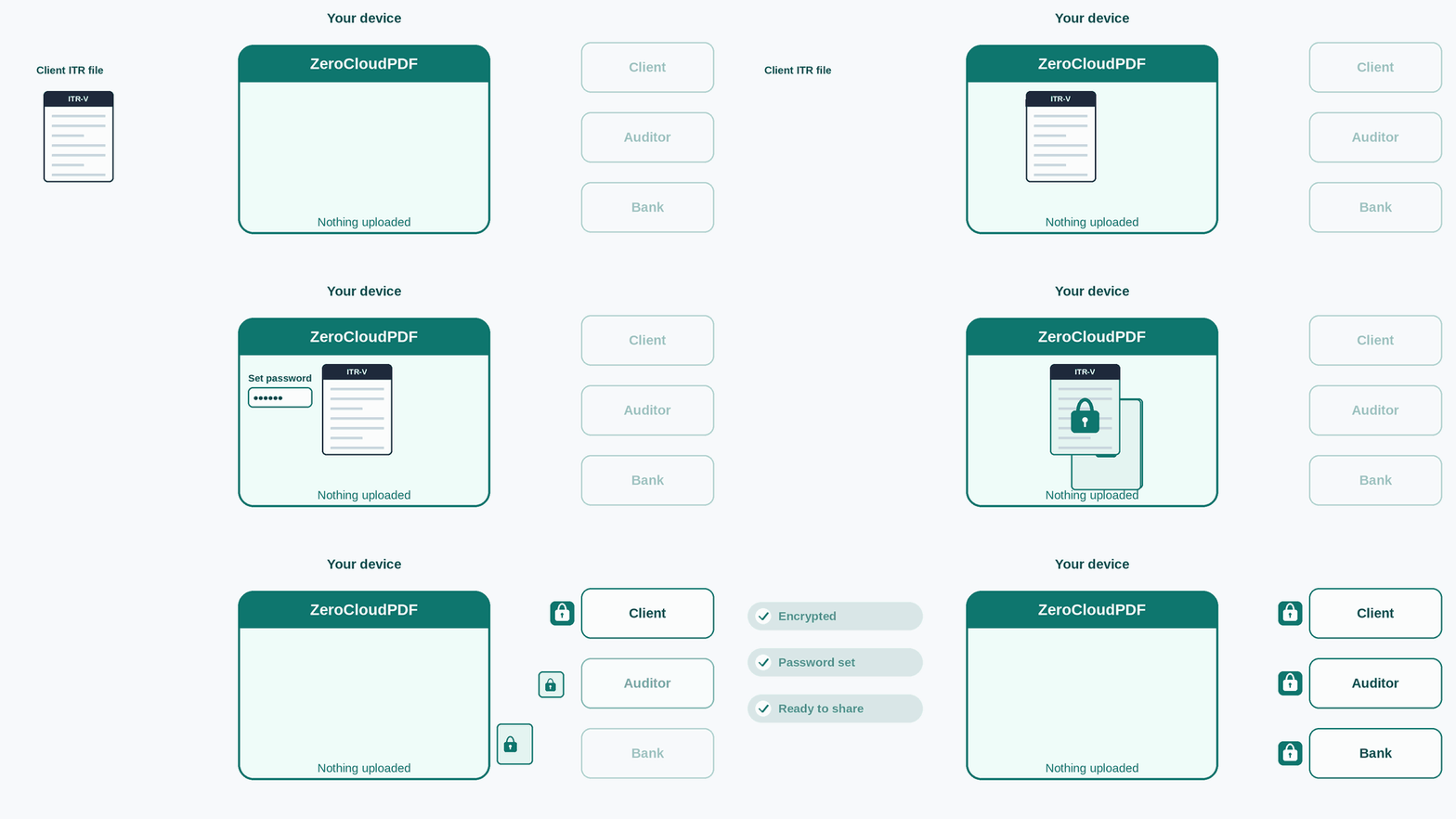
Add a password with 256-bit AES encryption, entirely in your browser.
Protect a PDF →The lock is only as good as the key. A few habits make the difference between a file that is actually protected and one that only looks it.
A routine that takes a couple of minutes per file is a small price against the cost of explaining to a client how their documents ended up somewhere they should not be. Clients also notice. A locked file with a call to share the passphrase quietly tells them their data is being taken seriously.
Yes, it is the safer default. The file does not stop at the client: it sits in their inbox, syncs to every device signed in to that mailbox, gets forwarded to family or staff, and can be sent to the wrong address if one character is mistyped. A password means the attachment is still locked in all of those places.
No. If both travel together, anyone who gets the email gets the file. Send the password through a separate channel, such as a phone call or an SMS, or agree a passphrase with the client once and rotate it each year.
Real 256-bit AES encryption, applied with QPDF running inside your browser. The strength of the lock depends mostly on the password you choose, so use a long, unique passphrase rather than a date of birth or PAN.
No. Redacting, compressing and protecting all run in your browser, so the file and the password are never uploaded to any server. Anonymous Google Analytics site-visit tracking is separate and never touches file content.
The tool cannot recover or bypass a forgotten password, and it should not be able to. Keep the unprotected master copy in your firm's own access-controlled storage, then protect a fresh copy and resend it.
Everything you need to prepare a client PDF before sharing it, all in your browser
Lock the finished client file with real 256-bit AES encryption before it leaves your hands. The file and the password never leave your device.
Protect or Unlock Now →Cover Aadhaar digits, account numbers, or unrelated names so they are removed from the file, not just hidden under a box.
Redact a PDF Now →Bring a heavy statement bundle under the email or portal limit without handing it to a third-party server.
Compress PDF →Combine a client’s documents into a single PDF first, then redact, compress, and protect it once instead of file by file.
Merge PDFs →